What “merge PDF on Android” needs to get right
A merge PDF job is usually urgent and specific: the signed page has to sit after the contract, the receipt has to follow the invoice, and you need one attachment. Browser tools ask you to upload those files first. On a phone, that is the slow path, and it puts the documents on someone else’s server.
ViaPDF merges on the device you already have. You see every page before the new file is written, you can drop a blank or a duplicate, and you get one PDF you can share from Android.
The merged file is written as page images, so text in it is not selectable. If you need searchable text, run OCR on the result and tap Save searchable PDF.
Before you merge
- Decide the order first. Cover, then terms, then the signature page is easier to fix under Pages in order than after you have already emailed it.
- Drop pages you do not want. A merge is also a chance to leave out a cover email or a blank scan.
- Watch the size. Combining files adds their pages together. If the result is too heavy to email, compress it afterward. See reduce PDF file size. After you Save, Keep going with this file takes you straight into another tool.
- Number the pages afterward. A long packet reads better with page numbers. See add page numbers to a PDF.
Reordering one file? Use Organize pages instead. It takes a single PDF, and you can change the page order or remove a page there.
How to merge PDFs in ViaPDF
The whole job stays in the Merge tool. Nothing is posted, and the original files are not overwritten.
- Open MergeOn the Tools tab, tap Merge, or tap Open PDF first and then pick Merge. ViaPDF runs the merge on your phone. There is no account and no upload.
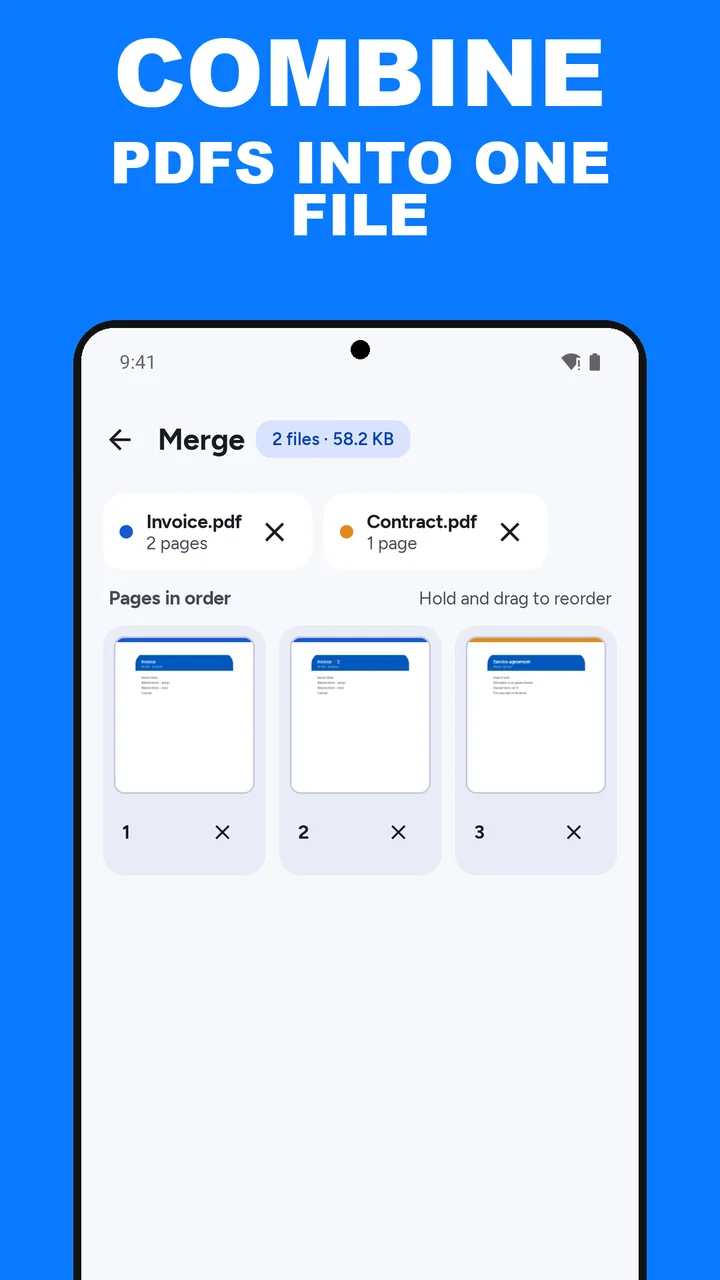
- Add the PDFsTap Add PDF and pick the files from Files, or share a PDF into ViaPDF from another app. Each file shows as a chip with ×. Tap the plus button to add more. You can add more than two.
- Set the page orderUnder Pages in order, every page is a thumbnail. Hold a thumbnail and drag it to a new place. Tap × on a page you do not want in the finished file. Undo brings it back.
- MergeTap Merge N pages, where N is how many pages you kept. It needs at least two pages. ViaPDF writes Merged.pdf in the order you set.
- Save or ShareEvery tool ends with Save and Share. Your first Save or Share is free. After that, a one-time unlock covers unlimited exports. After a Save, a confirmation screen offers Keep going with this file shortcuts into another tool, such as Compress if the merged file is too heavy.
Watch it in 27 seconds
The same steps as a short video. It loads from YouTube only when you press play.
Do this job on your phoneFree to download. The first export is free. Then pay once. Google Play shows your local price. The file stays on the device until you share it.
Merge PDF files on Android FAQ
Can I merge more than two PDFs?
Yes. Tap Add PDF, then the plus button for each extra file. Every page lands under Pages in order, and you export one file.
How do I change the page order?
Hold a page thumbnail under Pages in order and drag it to a new place. Tap × to remove a page, and tap Undo to bring it back. To reorder a single file, use Organize pages.
Can I remove a page while merging?
Yes. Tap × on that page under Pages in order. Undo brings it back for a few seconds. The source file on disk is left as it is. Only the new Merged.pdf changes.
Does merging upload my files?
No. Merge runs on your device. A file leaves the phone only when you tap Share or Save.