A scan is a picture until something reads it
OCR a scanned PDF means turning that picture back into words. You want to find “invoice 1042” inside a stack of scans, or paste a paragraph, or hand someone a PDF their reader can search. Printing it and typing it is the slow version.
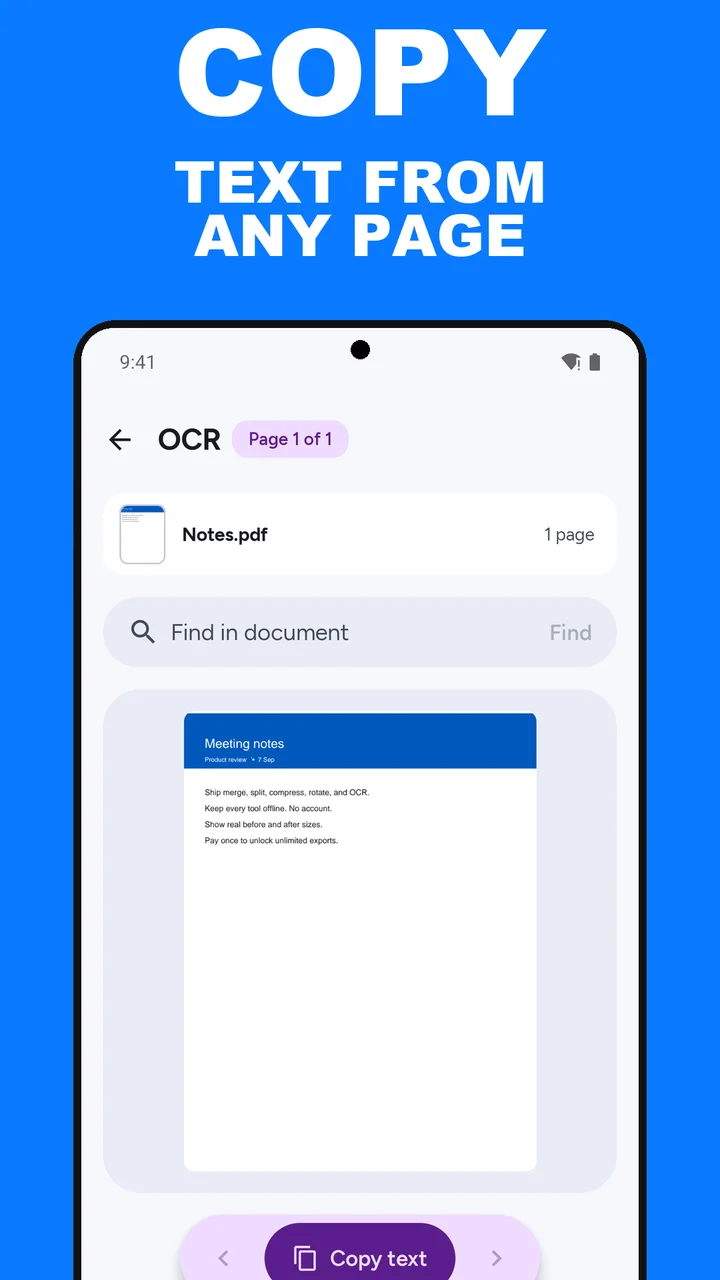
ViaPDF reads the page on your Android phone. If the PDF has a text layer, it reads that. If the file is only an image, it recognizes the text on the page. Either way you can copy the text, find words in it, and save a new PDF that contains the words. Copying without saving a new file is covered in copy text from a PDF.
Make the scan easier to read
- Rotate sideways pages upright first. See rotate PDF pages.
- Run OCR last. Merge, split, rotate, and compress write page images, so do those first, then run OCR on the result.
- Read the recognized text before you send a figure or a name from it.
- Save searchable PDF when the words need to travel inside the file, not only on your clipboard.
OCR here is for getting text out and writing a searchable copy. It does not redesign the page or convert the PDF into a different office format.
Heavy jobs confirm first. OCR warns you before a job over 50 pages because it may take a while. Over 200 pages, or over 250 MB, the file is refused.
How to OCR a scan in ViaPDF
- Straighten the page first if it is sidewaysIf the scan is sideways, use Rotate first so the lines of text are horizontal. After you Save, Keep going with this file can take the corrected copy back into another tool. Recognition has an easier time with upright text.
- Open OCR and choose the scanOn the Tools tab, tap OCR and choose the PDF. Or tap Open PDF first and then pick OCR.
- Check the textViaPDF reads the text layer if the PDF has one, and otherwise recognizes the text on the page. Read the result before you trust a number or a name.
- Find a word or copy textUse Find in document to look for a word across the PDF. Tap Copy text to copy the current page’s text. Copying is always free and is not an export.
- Save the searchable PDFTap Save searchable PDF. ViaPDF writes Searchable.pdf with the recognized words. That export is free the first time. Then Save or Share follows the usual pay-once rule.
Watch it in 27 seconds
The same steps as a short video. It loads from YouTube only when you press play.
Do this job on your phoneFree to download. The first export is free. Then pay once. Google Play shows your local price. The file stays on the device until you share it.
OCR a scanned PDF FAQ
Does OCR work without internet?
Yes. Recognition runs on the phone. A long scan is slower, and ViaPDF warns you before OCR jobs over 50 pages.
Will it read handwriting?
It is meant for printed text on a page or a scan. Treat the recognized text as something you check, especially on faint copies or unusual fonts.
Why can’t I select text in a merged or compressed PDF?
Merge, split, rotate, and compress write pages as images, so the text in their results is not selectable. Run OCR on the result and tap Save searchable PDF.
What are the size limits?
Files over 250 MB and documents over 200 pages are refused. OCR over 50 pages warns you first because it can take a while.