One attachment is the whole job
Searching combine PDF files usually means you are about to send something: an invoice plus a contract, an application plus a scan of an ID, three receipts a bookkeeper asked for in a single email. Separate attachments get lost. One PDF gets opened.
ViaPDF’s Merge tool is built for that packet. You add each file, you see every page, you put them in the order a person will actually read, and you export one PDF. The work happens on your Android phone, offline, with no account.
Build the packet in reading order
The mistake is appending files in the order they happen to sit in Downloads. Put the page a reviewer looks at first at the front. A typical packet:
- The form or the invoice.
- The supporting pages, in the order the form mentions them.
- The signature or the receipt at the end.
The step-by-step for the controls themselves is in merge PDF files on Android. If the finished packet is heavier than the inbox allows, compress it next. A long packet also reads better with page numbers: see add page numbers to a PDF.
Originals stay put. Combining writes a new PDF. The invoice and the contract you started with are still separate files if you need them later. The new file is written as page images, so its text is not selectable. Run OCR and tap Save searchable PDF if you need searchable text.
How to combine PDFs in ViaPDF
- Collect the filesLeave the PDFs in Files, Drive’s offline copies, or Downloads. You will pick them inside ViaPDF. They are not uploaded to us.
- Open MergeTap Merge on the Tools tab, or tap Open PDF first and then pick Merge.
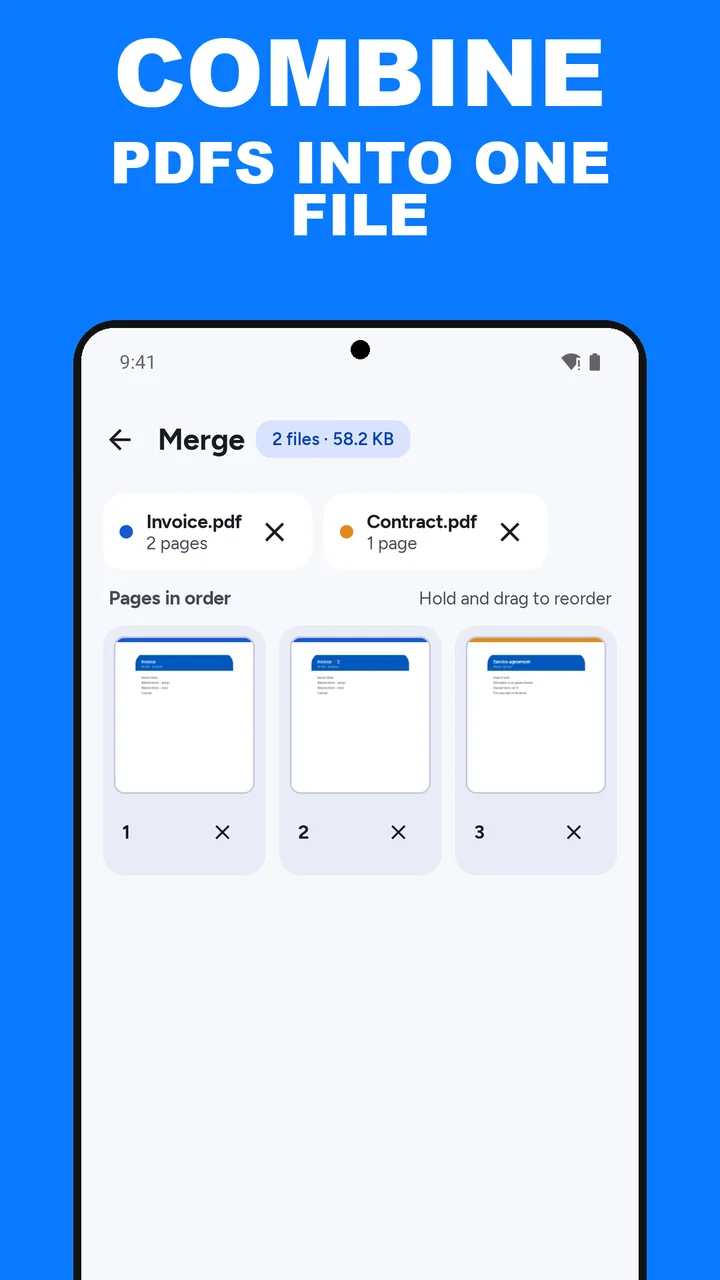
- Add every PDF in the packetTap Add PDF and select a file, then tap the plus button for each of the others. Each file shows as a chip with ×, so you can take one out.
- Put the packet in reading orderUnder Pages in order, hold a thumbnail and drag it to move it. Drop a cover sheet or a duplicate with ×, and tap Undo if you slip. The person receiving one attachment will read this order.
- Export one fileTap Merge N pages, then Save or Share. One file, one message. After a Save, Keep going with this file can take it straight into Compress if it is too heavy.
Watch it in 27 seconds
The same steps as a short video. It loads from YouTube only when you press play.
Do this job on your phoneFree to download. The first export is free. Then pay once. Google Play shows your local price. The file stays on the device until you share it.
Combine PDF files into one FAQ
Is combine different from merge?
Same tool. Combine is the job: several PDFs become one attachment. Merge is the button that does it.
Can I mix a one-page scan with a long contract?
Yes. Each file’s pages are added under Pages in order. Drag them so the scan sits where a reader expects it.
Can I reorder pages inside one PDF instead?
Yes. Organize pages takes a single PDF: hold and drag pages, tap × to delete one, then Save. See reorder PDF pages.
What if the combined file is too big to email?
Save the merged file, then use Keep going with this file to open Compress. Or extract the pages that have to go in the email. Start with reduce PDF file size.