Compress a PDF only if you can see the new size
Most people searching compress PDF Android have a file an email or a form just rejected. A slider that says “high quality” does not answer the question. You need the new size, in kilobytes or megabytes, before you hit send.
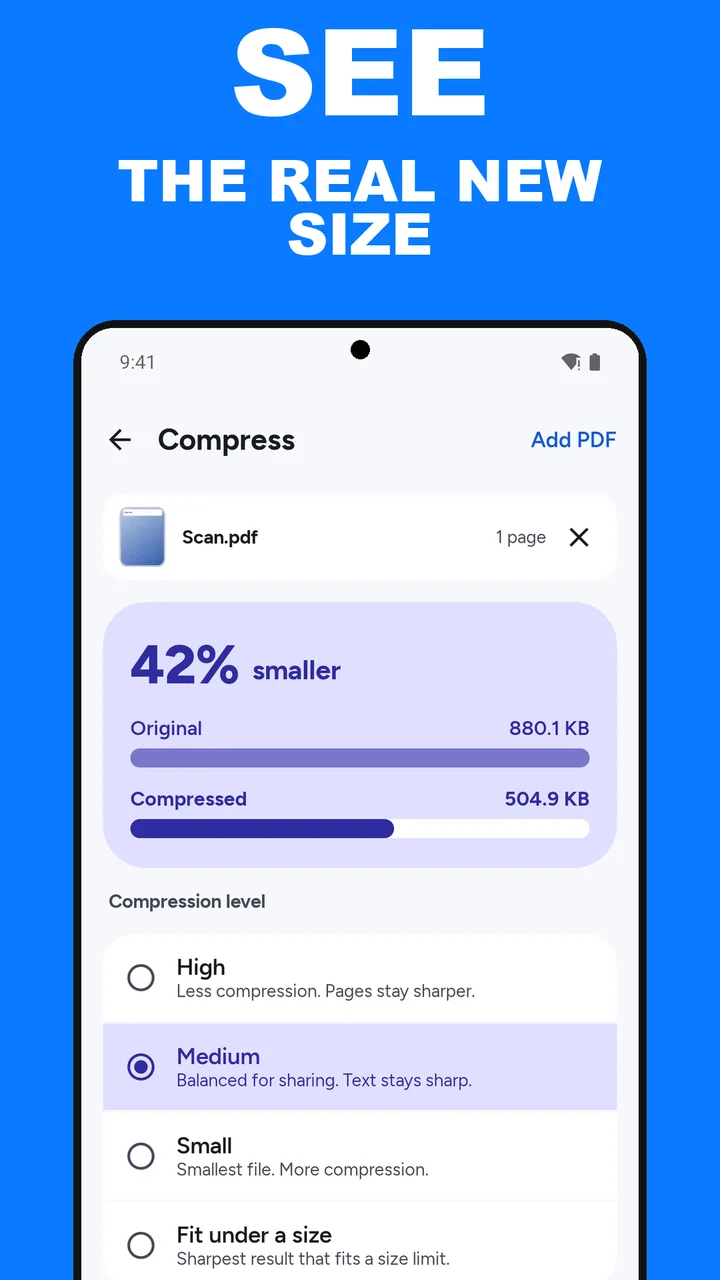
ViaPDF compresses on your phone and puts that number on screen. Tap Compress and a card shows NN% smaller, with the Original and Compressed sizes. The listing screenshot shows one scan moving from 880.1 KB to 504.9 KB at Medium, 42% smaller. That is an example, not a promise. Your PDF shrinks according to what is inside it.
Which compression level to use
- High — less compression. Pages stay sharper. Use it for a page someone will read closely.
- Medium — balanced for sharing. Text stays sharp. This is the right default for email.
- Small — smallest file, more compression. Use it when the form or the inbox has a hard limit.
- Fit under a size — sharpest result that fits a size limit. Pick 2 MB, 4 MB or 5 MB, or tap Custom and type one. ViaPDF finds the setting for you, and says so if the file can’t get that small. See compress a PDF to 2, 4 or 5 MB.
Compression rewrites the pages as smaller images. A text-only PDF often shrinks only a little. A phone scan of a paper form usually shrinks a lot. The result is written as page images, so its text is not selectable; to get searchable text, run OCR and save a searchable PDF. If you only need a few pages of a long file, extract those pages first, then compress what is left.
Look before you export. Pick a level and tap Compress to see the size card. If the number is too big, pick another level and tap Compress again. Save or Share only after the number fits.
How to compress a PDF in ViaPDF
- Open CompressOn the Tools tab, tap Compress, or tap Open PDF first and then pick Compress. Processing stays on your phone.
- Add the PDFChoose the file. You can add more than one PDF.
- Pick a levelHigh keeps pages sharper. Medium is balanced for sharing, and text stays sharp. Small makes the smallest file and compresses more.
- Tap Compress and read the sizeTap Compress. A card shows NN% smaller with the Original and Compressed sizes before you export. If the file cannot get smaller, it says Already as small as it gets. If the number is not small enough, pick Small and tap Compress again.
- Save or ShareExport only when the size is one you are willing to send. The result is Compressed.pdf. The first export is free. After a Save, Keep going with this file offers shortcuts into another tool.
Watch it in 25 seconds
The same steps as a short video. It loads from YouTube only when you press play.
Do this job on your phoneFree to download. The first export is free. Then pay once. Google Play shows your local price. The file stays on the device until you share it.
Compress a PDF on Android FAQ
Will compression make the text blurry?
Medium is described in the app as balanced for sharing, with text staying sharp. High compresses less and keeps pages sharper. Small is the smallest file and compresses more, so use it when size matters more than fine detail.
Why does my PDF barely shrink?
A PDF that is already mostly text has little image data to shrink. Scans and photo-heavy pages shrink more. The card tells you before you export. If the file cannot get smaller, it says Already as small as it gets.
Will the compressed PDF keep selectable text?
No. Compress writes the pages as images, so text in Compressed.pdf is not selectable. Run OCR and tap Save searchable PDF if you need searchable text.
Is there a file-size limit?
ViaPDF refuses files over 250 MB or documents over 200 pages. Compress warns you before a job over 50 pages, because those jobs take longer on a phone.