Everkeep
A private baby memory book for Android and iPhone. No account, no subscription.
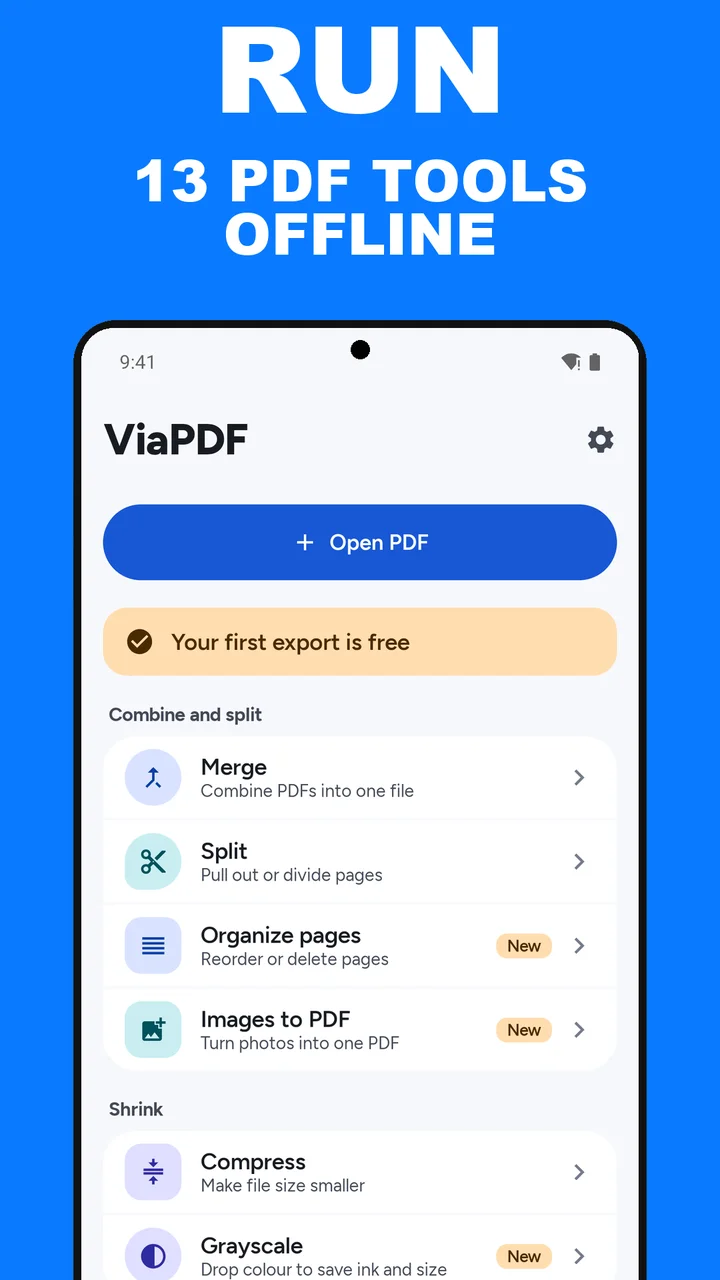
See EverkeepViaPDF has thirteen offline PDF tools for the Android phone you already have. Combine files, pull pages out, and shrink a PDF to a size you can see. Also: Images to PDF, Organize pages, Grayscale, Crop margins, Page numbers, PDF to images, Text stamp, and Unlock (removes a password you know; Android 15 and later). No account. No upload. The first export is free.
Free to download. The full toolkit is a one-time purchase, and Google Play shows your local price. No subscription.
On Google Play for Android 7.0 and later. Open a PDF from Files or share one in. No sign-up, no email, no upload.
Full toolkit · pay once · no subscriptionThirteen tools, the page order, the real file size, the words on the page, and a one-time unlock. These are the screenshots from the Google Play listing.
Thirteen tools, a real file size before you share, and everything on the phone. The video loads from YouTube only when you press play.
No account to create and nothing to upload. You pick the tool, check the result, and export when it looks right.
ViaPDF opens on Tools, with an Open PDF button and thirteen tools in four groups. Tap Open PDF and then pick a tool, or pick a tool and then choose the file.
Choose it from Files, or share a PDF into ViaPDF from another app. The file is ready on the device. You do not sign in.
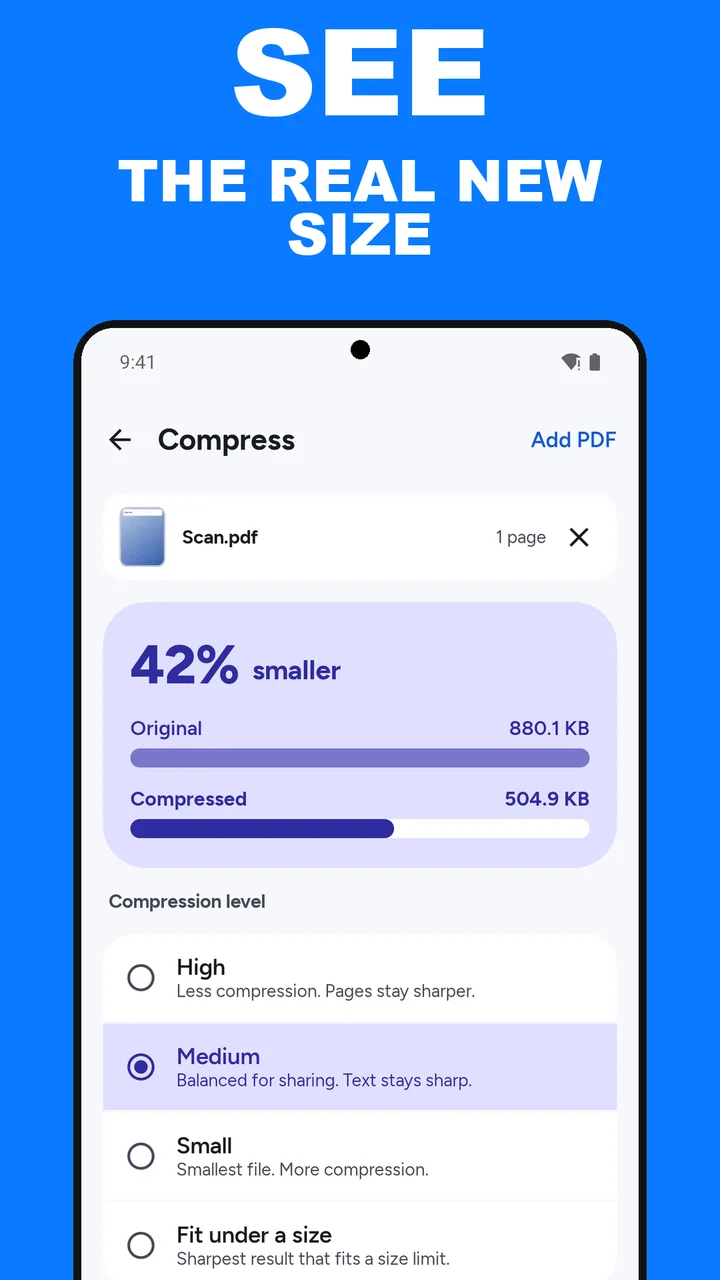
Set the page order, select a range, compare the compressed size, turn a page, or read the recognized text. Compress shows NN% smaller, with the Original and Compressed sizes, before you export.
Every tool ends in Save and Share. The first one is free. After that, unlock once. The new PDF stays on your phone until you send it somewhere yourself.
Built for people who need a file done on the device they are holding, then want to get on with the rest of the day.
There is no account and no upload. All thirteen tools run locally. A PDF leaves the phone when you tap Share or Save.
Compress shows NN% smaller with the Original and Compressed sizes, or fits a file under 2, 4 or 5 MB. You export after the number makes sense.
Combine and split: Merge, Split, Organize pages, Images to PDF. Shrink: Compress, Grayscale. Fix pages: Rotate, Crop margins, Page numbers. Text and export: OCR, PDF to images, Text stamp, Unlock (a password you know, Android 15 and later).
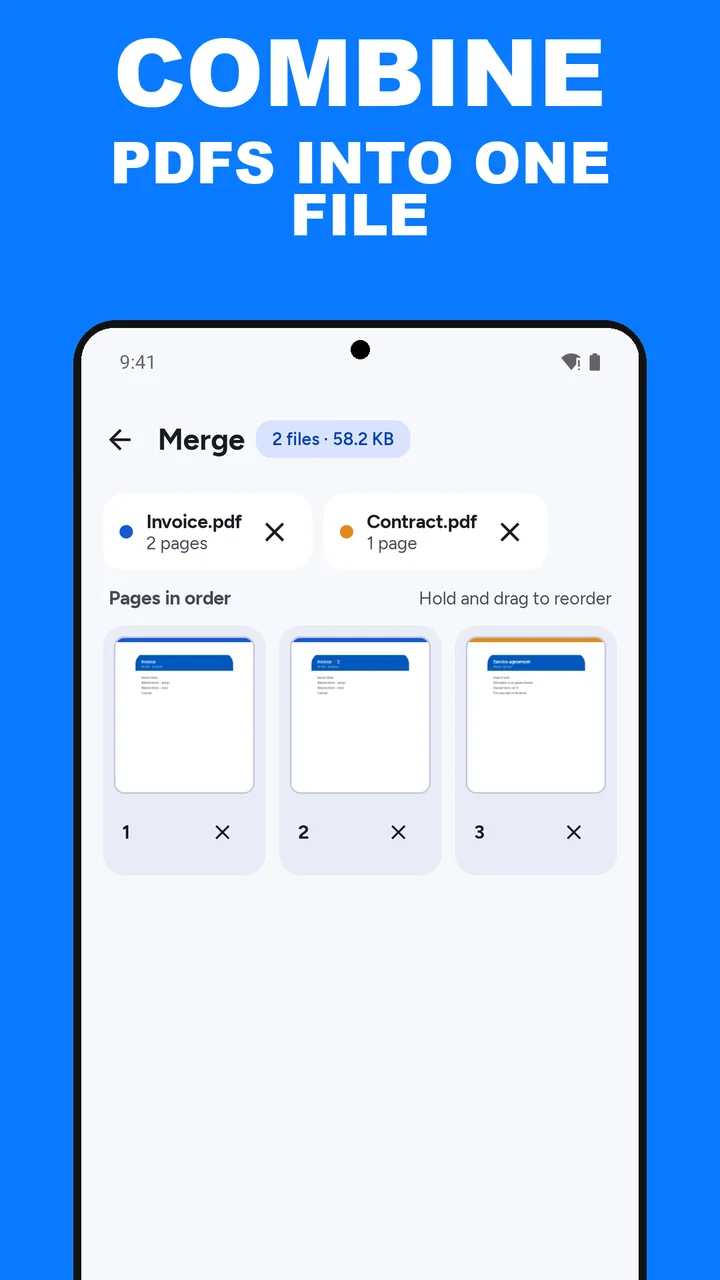
Hold and drag pages to reorder them in Merge or Organize pages, type a range like 1-3, 5 when you split, and rotate one page or every page.
A text layer can be copied directly. A scan is recognized on the device. Save searchable PDF when the words should stay in the file.
The Recents tab lists files you open and results you save. Search by file name or filter by tool. It keeps the last 100.
Open any tool and look at the result. The first Save or Share is free. ViaPDF adds no watermark of its own, and there are no ads.
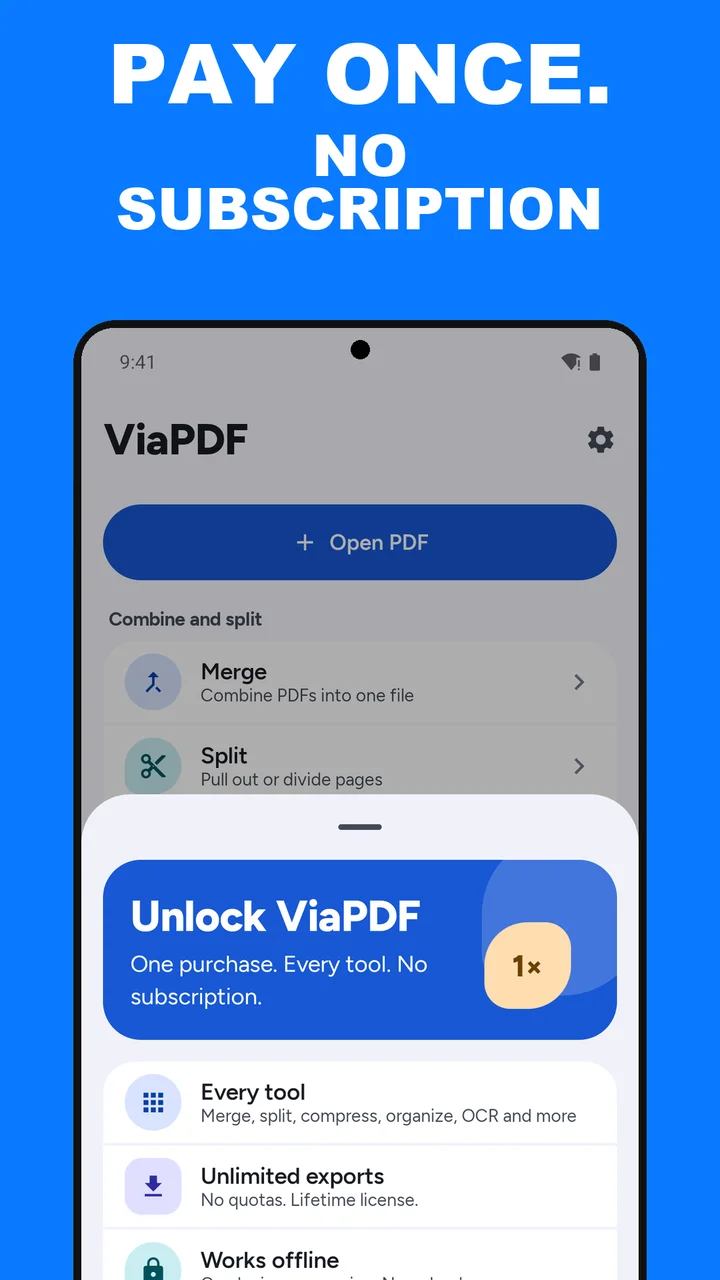
Unlimited exports are a single purchase. Google Play shows the local price on the unlock button. No subscription.
Processing does not wait on a connection. Install the app when you have a signal. Use the tools when you do not.
Finish a real job before you buy anything. When you need another export, unlock the toolkit once. Google Play shows your local price. No subscription.
Enough to finish one real job and send one file.
Unlimited exports. Google Play shows the price for your country on the unlock button.
How to merge, compress, split, convert, crop, number, and unlock PDFs on Android, and how the free export and the one-time unlock work.
Combine two or more PDFs into one file, set the page order, and drop pages you do not need. On your phone, offline.
Read the guide →CompressSee the real new file size before you share. High, Medium, or Small, with the before-and-after numbers on screen.
Read the guide →SplitPull out the pages you need, or type a range like 1-3, 5. ViaPDF saves that selection as a new PDF on your phone.
Read the guide →MergeTurn a pile of separate PDFs into one attachment: invoice, contract, receipt. Set the order, then share a single file.
Read the guide →CompressWhen an attachment is rejected, shrink the PDF on your phone and check the new size before you send it again.
Read the guide →SplitKeep page 4, or pages 2 through 6, as a new PDF. Type the range or tap the thumbnails. The original stays intact.
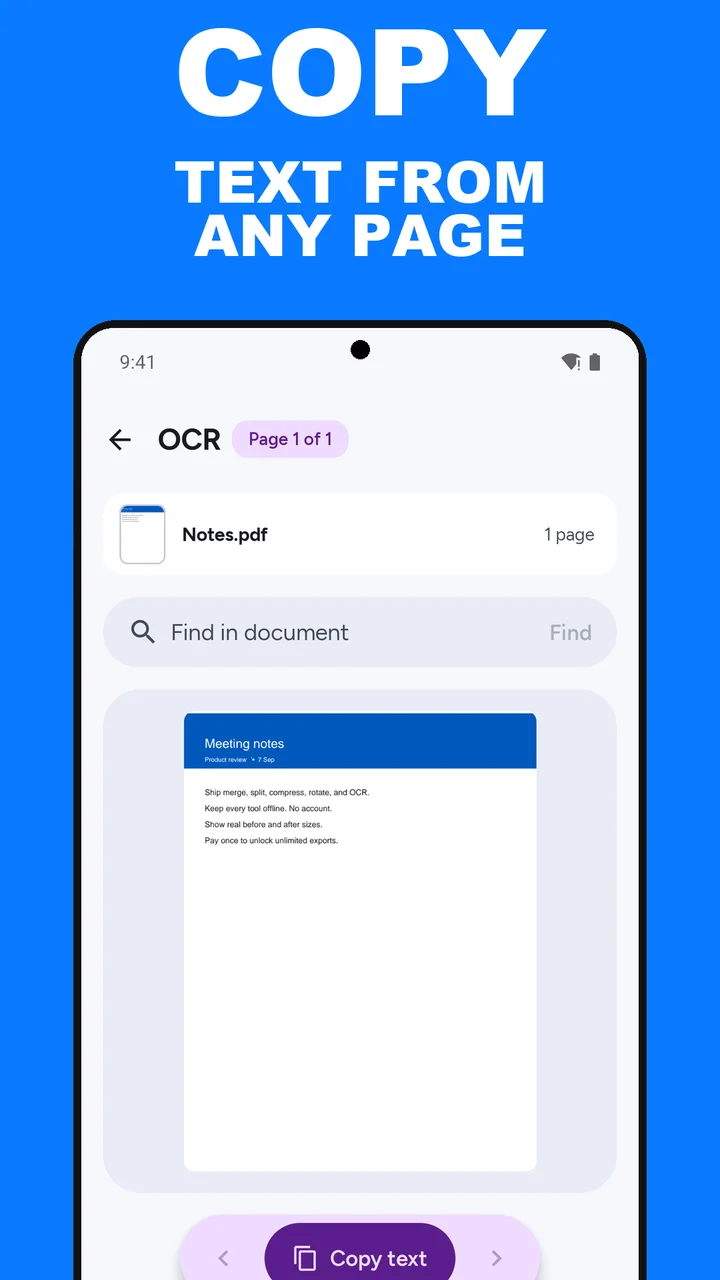
Read the guide →OCRIf the PDF has real text, copy it. If it is a scan, ViaPDF recognizes the page on your phone so you can copy that too.
Read the guide →RotateTurn a sideways scan upright. Rotate every page, or only the pages that are wrong, by 90 degrees at a time.
Read the guide →PDF to imagesSave pages as JPG (smaller files) or PNG (sharper text) in Pictures/ViaPDF on Android 10 and later, or share them to another app.
Read the guide →UnlockUnlock makes an unprotected copy when you know the password. Android 15 and later. It does not guess or recover passwords.
Read the guide →Page numbersPick the position and style, set the first number, and save a numbered copy.
Read the guide →CropTrim the white edges automatically, or with a fixed margin from 1% to 20%, with a preview of page 1.
Read the guide →GrayscaleTurn every page black and white and save a new copy.
Read the guide →PrivacyThirteen tools with no account and no upload. The PDF stays on your phone.
Read the guide →StampPut Draft, Paid, Copy or your own label on every page. Pick the placement, colour and opacity. On your phone, offline.
Read the guide →Straight answers about the thirteen tools, privacy, and what the free export includes.
Open ViaPDF, tap Merge, and add the PDFs with Add PDF. Under Pages in order, hold and drag a page to move it, or tap × to remove one. Tap Merge N pages, then Save or Share. The merge runs on your phone, and the first export is free.
That is the Merge tool. Add each PDF, put the pages in the order a reader should see them, and tap Merge N pages to get one file, Merged.pdf. The originals stay as separate files.
Tap Compress, add the PDF, choose High, Medium, or Small, or Fit under a size for a limit such as 2 MB, and tap Compress. A card shows NN% smaller with the Original and Compressed sizes before you export. If the file cannot get smaller, it says Already as small as it gets.
Compress at Medium and read the new size. If you are still over the limit, switch to Small, or use Split to extract the pages you need and compress that shorter file.
Tap Split and add the PDF. Type a Page range such as 1-3, 5, 8-10, or tap page thumbnails. The two stay in sync. Tap Extract N pages. The selected pages save as one new PDF, not one file per page, and the original is not changed.
In Split, type the page number in the Page range field, or tap that thumbnail, then tap the Extract button. You get a new PDF with just that page.
Tap Rotate and add the PDF. Tap a page to turn it 90° clockwise, and a small badge shows 90°, 180°, or 270°. The All pages bar turns every page left or right, and Reset clears your changes. Tap Rotate to write a new file.
Tap OCR and open the PDF. ViaPDF reads the text layer if there is one, and otherwise recognizes the text on the page. Tap Copy text to copy the current page. Find in document searches the rest. Copying is always free.
Yes. OCR recognizes the text on your phone. You can copy it, or tap Save searchable PDF to get a new file named Searchable.pdf. OCR warns you above 50 pages.
Use Organize pages. Add the PDF, hold and drag pages into the order you want, and tap × to delete a page. Undo brings it back, and Reset returns to the original order. Tap Save N pages to write Organized.pdf.
Yes. Open PDF to images and choose JPG (smaller files) or PNG (sharper text). All pages are selected at first, so tap pages to change the selection, then tap Convert N pages. Save puts the images in Pictures/ViaPDF on Android 10 and later. Share sends them to another app. On Android 7 to 9, only Share is offered.
Only if you know the password. Unlock asks for it and makes an unprotected copy, Unlocked.pdf. The original is not changed. A wrong password shows “That password didn't work.” Unlock does not guess, recover, or crack passwords. It needs Android 15 or later; on Android 14 and earlier the tool says it needs Android 15.
Yes. Open Page numbers, choose a position (Bottom centre, Bottom right, or Top right) and a style (1, 1 / 9, or Page 1), and set Start at for the first number. Tap Add page numbers to save Numbered.pdf.
Yes. In Crop margins, choose Automatic to find the white edges on each page, or Fixed margin to trim 1% to 20% from every edge. A preview of page 1 shows the cut. Tap Crop margins to save Cropped.pdf.
Yes. Open Grayscale, add the PDF, and tap Convert to grayscale. Every page becomes black and white, and the result saves as Grayscale.pdf.
Yes. Text stamp lets you type up to 40 characters or tap a suggestion: Draft, Paid, Copy, or Confidential. Choose Diagonal, Top, or Bottom, one of four ink colors, and an opacity, then tap Add stamp. The stamp goes on every page of a new copy, Stamped.pdf.
No. All thirteen tools run on the device. The Play data-safety form reports no data collected and no data shared. A file leaves the phone when you tap Save or Share.
ViaPDF is free to download, the first export is free, and the full toolkit is a one-time purchase, and Google Play shows your local price on the unlock button. There is no monthly plan and there are no ads.
Thirteen tools in four groups. Combine and split: Merge, Split, Organize pages, Images to PDF. Shrink: Compress, Grayscale. Fix pages: Rotate, Crop margins, Page numbers. Text and export: OCR, PDF to images, Text stamp, Unlock. Tools write a new PDF as page images, so text in a result is not selectable unless you run OCR and save a searchable PDF. ViaPDF does not edit page content, fill forms, sign, scan with the camera, convert PDFs to Word, or add a password to a PDF. Android 7.0 or later is supported, and Unlock needs Android 15.
Yes. You can run the tools and look at the result, and the first Save or Share is free. After that, a one-time unlock covers the rest.
You can still use all thirteen tools. ViaPDF does not need a connection to process a PDF. Downloading the app, and confirming a purchase, can require one.
Download ViaPDF free on Android. Your first export is on us. Unlock the toolkit once when you need the next one.
A private baby memory book for Android and iPhone. No account, no subscription.
See EverkeepClipboard manager for Android that stays on this phone. No ads. No account.
See SoloclipFinds similar photos, bursts and old screenshots on Android. Photos stay on the phone.
See SparePixScan papers to PDF, file them in folders and find them by any word on the page. Text is read on the phone.
See Filetray