Pins are for the text you should never retype
Pin clipboard snippets when the same string shows up every week: office Wi-Fi, a unit address, VAT numbers, a polite “running five minutes late.” Gboard can pin a handful in its drawer. A manager should let you search, folder, and insert them from a keyboard.
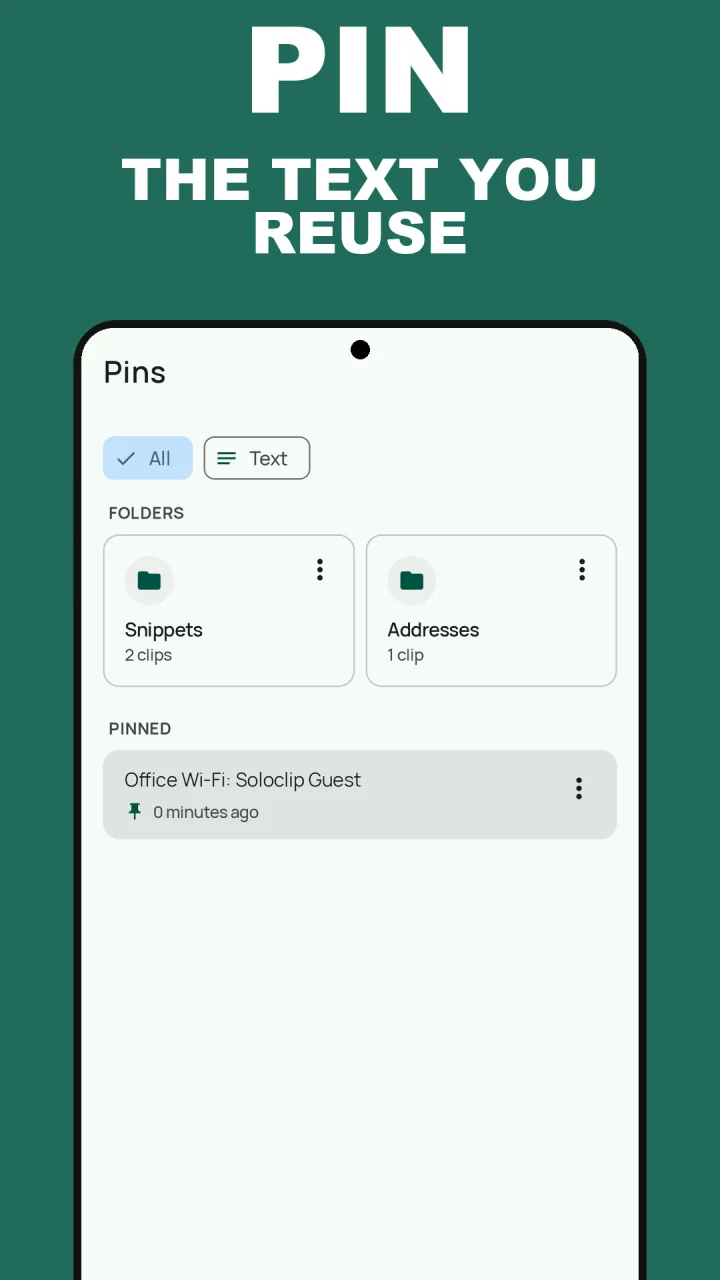
In Soloclip, pins live in the Pins tab. Folders group snippets (for example Addresses). They are stored on-device. They are not a cloud snippet library.
Folders vs a flat pin list
Use a folder when you have more than a few staples. Keep the pin strip for the two or three you grab from Quick Settings. Do not pin OTPs or passwords — those are filtered or short-lived on purpose.
Pin a snippet in Soloclip
Pro unlocks the actions. Free users see the locked Pins screen and the pay-once sheet.
- Unlock Pro oncePins, folders, keyboard insert, the Quick Settings pinned strip, merge, and text from screenshots are the pay-once set.
- Copy or add the textWi-Fi password, shipping address, support reply. Use Add clip if it is not on the clipboard.
- Pin it from HistorySwipe the clip, or open its menu and choose Pin. Or move it into a folder such as Addresses.
- Insert from the keyboardSwitch to Soloclip, open the insert panel, filter Pins, tap the snippet.
- Optional: Quick SettingsThe pinned strip is for copying a staple snippet without opening the full app.
Keep clipboard history on this phoneFree to download with unlimited history. Unlock once. No ads. No subscription.
Pin clipboard snippets FAQ
Do pins expire?
No. Unpinned history defaults to 30 days. Pins never auto-clear.
Are snippet folders on the free tier?
No. Pins and folders are Pro.
Can I use this as a text expander?
Soloclip inserts the full snippet from the keyboard. It does not expand trigger abbreviations in Gboard via Accessibility.