Three ways to get text out of a screenshot
To copy text from a screenshot on Android you need text recognition, usually called OCR. Your phone already has some of it built in.
Google Lens
Open the screenshot in Google Photos, tap Lens, then tap the text and choose Copy text. It handles most languages and most fonts. The text lands on the clipboard, and the next copy replaces it.
The Recents screen
On Pixel and some other phones, swipe up to Recents and tap Select. You can highlight text in the app preview without taking a screenshot at all. Samsung offers a similar text button in Gallery.
Share the image to Soloclip
Share the screenshot to Soloclip and the recognised text is saved as a clip. This is the option to use when you will need the text again next week, or when a single screenshot holds several separate things you want to keep.
One-off or keeper? Lens is fine when you paste straight away. A clipboard history is for the text you will look for later.
Why keep the text and not the screenshot
Screenshots pile up in the gallery and cannot be searched by what they say. A saved clip can. Soloclip sorts it too: a tracking number gets a track action, an address opens in maps, a phone number dials.
Grab text from a screenshot in Soloclip
Recognition runs on the phone. Clean app screenshots read best. Photos of paper depend on focus and light.
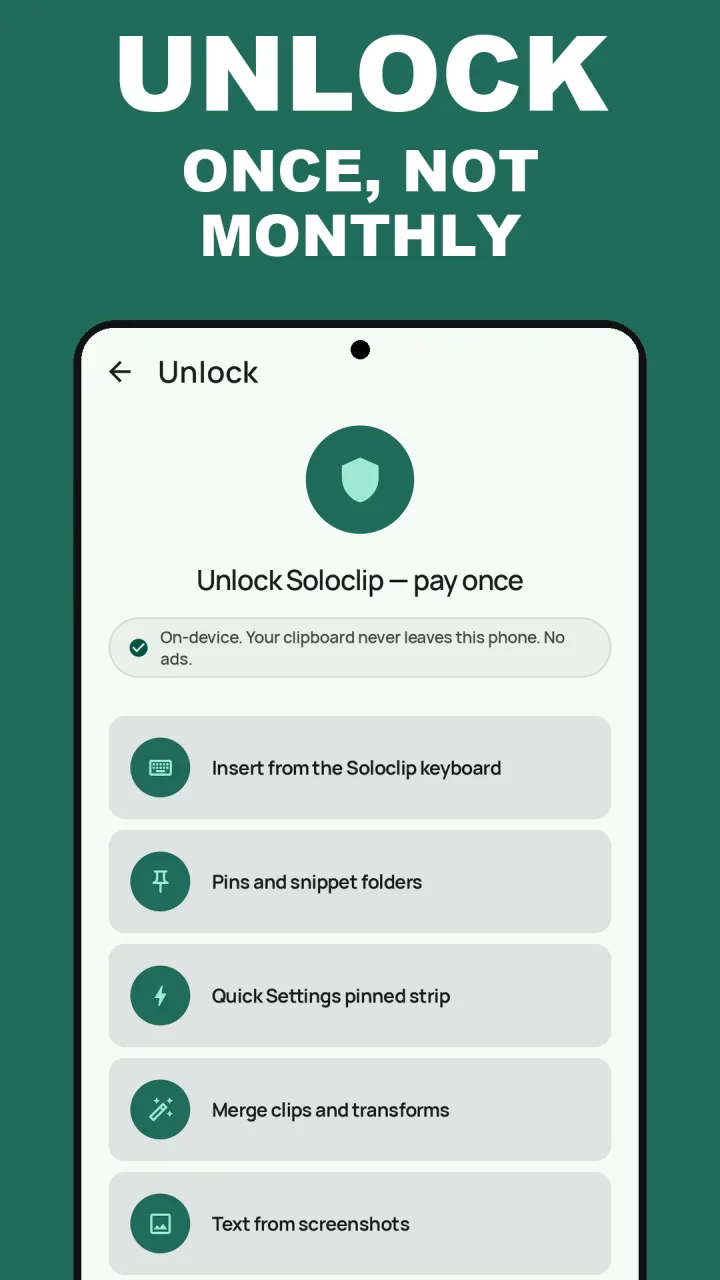
- Unlock Soloclip onceText from screenshots is part of the pay-once unlock, with keyboard insert, pins and merge.
- Share the screenshot to SoloclipFrom your gallery or the screenshot preview, tap Share and choose Soloclip. Or open Soloclip and tap Grab text from a screenshot to pick an image.
- Wait a moment while it readsRecognition runs on the phone. The picture is not uploaded and is not stored.
- Save what you needSave as clip keeps all the text as one clip. Save each block makes one clip per block. Copy puts it on the clipboard.
- Find it later in HistoryThe saved text is searchable like any other clip, and it is sorted into links, phones, addresses and the rest.
Watch it in 18 seconds
The same steps as a short video. It loads from YouTube only when you press play.
Keep clipboard history on this phoneFree to download with unlimited history. Unlock once. No ads. No subscription.
Text from a screenshot FAQ
Can Android copy text from a picture without an app?
Often, yes. On Pixel phones the Recents screen lets you select text in an app preview. Google Lens, built into Google Photos, reads text in any saved image.
Does Soloclip keep the screenshot?
No. Soloclip keeps the text you choose to save. The image and its location are not stored.
What if the screenshot shows a one-time code?
Saved text goes through the same sensitive guard as a copy. Codes, card numbers and keys are hidden and gone in five minutes.